Infovideo Everygen AI Video Generator: build a short product story
Explore Infovideo Everygen AI Video Generator and turn a product idea into a focused short video with the H3Max workspace. Plan one visible action, choose a supported model, review the displayed credit quote and refine your result before adding it to a campaign.
Video workspace
Crayon Picture Book — The Moon Can't Sleep
1/94View prompt
Create a 20-second original animation inspired by Crayon Picture Book. The moon can't sleep, so a little girl climbs onto the roof to sing it a lullaby. A picture-book page drawn live in wax crayon on toothy paper, with a watercolour wash that reveals what the crayon was hiding. References (grammar only): Raymond Briggs' *The Snowman* (1982) (hand-textured frames that breathe, wordless tenderness, a lyrical passage carried by one tune, still backgrounds with living figures). Copy none of its characters, song or imagery, and never name it in the film. Use an original story, clear compositions and deliberate transitions. Silent animation.
Introduction
Infovideo What is Infovideo Everygen AI Video Generator?
Infovideo Everygen AI Video Generator belongs to Everygen, the platform formerly known as Viewmax. Its official site describes video creation for shorts, user-generated content and advertisements.
Infovideo Understand the video task
Infovideo Everygen AI Video Generator brings several creative tools into a shared product. For this page, the useful starting point is a short shot that communicates one product benefit through an observable action.
Infovideo Recognize this independent workspace
This Infovideo Everygen AI Video Generator page uses H3Max models and credits. It does not connect an Everygen account, import its projects or reproduce its editing environment.
Infovideo Begin with a small deliverable
Treat Infovideo Everygen AI Video Generator research as a chance to narrow the job. Decide whether you need an opening product reveal, a close detail or a human demonstration. Start with one of those shots.

How to use
Infovideo How to use Infovideo Everygen AI Video Generator
- STEP 1
Infovideo Plan one shot
Write your Infovideo Everygen AI Video Generator brief around one product, one visible action and a setting that makes the benefit easy to understand.
- STEP 2
Infovideo Check the controls
Choose Infovideo Everygen AI Video Generator model, mode, duration and framing in the workspace; review the supported options and displayed credit quote before continuing.
- STEP 3
Infovideo Create a draft
Load or write an Infovideo Everygen AI Video Generator prompt, add a photograph if needed, then sign in and deliberately press Create.
- STEP 4
Infovideo Select the useful take
Play your Infovideo Everygen AI Video Generator result completely, check the product and hands, then download the selected shot for your campaign editor.

Features
Infovideo Write an Infovideo Everygen AI Video Generator shot brief
An Infovideo Everygen AI Video Generator brief becomes more useful when it describes what changes on screen. Specify one subject, a concrete movement and the setting that supports it.
Infovideo Choose a product benefit
For Infovideo Everygen AI Video Generator planning, translate the benefit into evidence a viewer can see. A tote resting upright can suggest structure; a potter rotating a cup can reveal its glaze.
Infovideo Set the shot’s beginning and end
A good Infovideo Everygen AI Video Generator draft has a simple arc. Begin with the product clearly visible, describe the action, then finish with a stable view. Five seconds can accommodate one deliberate movement more comfortably than several scene changes.
Infovideo Separate footage from final messaging
Infovideo Everygen AI Video Generator searches often lead to complete ad workflows, but generated footage is only one ingredient. Add verified specifications, prices, subtitles and brand typography in an editor.

Infovideo Keep the Infovideo Everygen AI Video Generator subject clear
Infovideo Everygen AI Video Generator projects benefit from a recognizable hero object. Describe the object’s shape and materials before adding atmospheric details or elaborate camera movement.
Infovideo Name visible characteristics
In an Infovideo Everygen AI Video Generator prompt, describe a cobalt ceramic mug, its curved handle and glossy surface rather than just writing premium product. Concrete characteristics give you something to inspect later.
Infovideo Use an image when appearance matters
If your Infovideo Everygen AI Video Generator task depends on a particular product photograph, switch to a supported image-to-video mode and upload that image. A text-only draft may invent details.
Infovideo Control competing details
Keep the Infovideo Everygen AI Video Generator frame focused on the product and its immediate action. A maker’s hands can explain scale, while a crowded table or several moving people may hide the object.

Infovideo Direct one Infovideo Everygen AI Video Generator movement
Infovideo Everygen AI Video Generator footage should communicate through movement rather than a list of adjectives. A single action makes the preview easier to evaluate and the revision easier to write.
Infovideo Describe a physical action
Ask Infovideo Everygen AI Video Generator footage to show a baker lifting one tray, a florist turning a bouquet or a maker rotating a cup. State the action’s pace and direction. Avoid combining a hand demonstration, rapid orbit, room transition and dramatic zoom into the same short draft; each adds another relationship to maintain.
Infovideo Keep camera direction restrained
For an Infovideo Everygen AI Video Generator product shot, a locked camera or gentle push can make the object easy to compare across frames. If the subject already moves, the camera may need less motion. Inspect the result’s opening and final frame to see whether the product stays inside a usable composition throughout.
Infovideo Revise the failed detail first
An Infovideo Everygen AI Video Generator revision should address the visible problem. If a handle bends, simplify the rotation or request a steadier view. If the subject drifts out of frame, adjust the placement. Change one meaningful instruction before requesting another take so that you can understand what improved.

Infovideo Frame Infovideo Everygen AI Video Generator campaign footage
Infovideo Everygen AI Video Generator can be part of a broader content workflow. Select the output format for the intended placement before polishing a shot that may not fit its destination.
Infovideo Choose the placement early
For Infovideo Everygen AI Video Generator planning, distinguish a vertical feed post from a landscape website banner. Change the supported aspect ratio in the workspace and check how the composition responds. Leave useful room around the object when you expect to add captions later, especially near the top and bottom of a vertical frame.
Infovideo Review the starting preset
This Infovideo Everygen AI Video Generator page starts with MiniMax H3 Max Turbo in text-to-video mode. The short draft preset uses five seconds, 480P and landscape framing with native audio. These are starting controls, not restrictions on every project. Changing the model or settings can change supported options and the quote.
Infovideo Use sound deliberately
When Infovideo Everygen AI Video Generator footage includes generated audio, listen for unwanted speech, sudden volume changes and distracting background sound. A quiet product shot may need only a soft room atmosphere. Your final editor can combine the chosen clip with narration or licensed music when exact campaign timing matters.

Infovideo Review Infovideo Everygen AI Video Generator results
Infovideo Everygen AI Video Generator ideas become useful assets only after review. Compare the full moving result with the brief, then keep the take that shows the product most clearly.
Infovideo Inspect the complete take
Play Infovideo Everygen AI Video Generator footage from beginning to end rather than approving a promising poster frame. Watch the object’s outline, the maker’s hands, the background and the transition into the ending. A defect that appears for a few frames may still be obvious when the clip loops inside a social feed.
Infovideo Compare against a simple checklist
Judge the Infovideo Everygen AI Video Generator draft against three questions: can viewers identify the product, understand the action and read the intended benefit? Keep these questions separate from preferences about color grading or music. That distinction helps you decide whether to regenerate footage or solve a small finishing issue in your editor.
Infovideo Keep a record of the selected draft
Save the Infovideo Everygen AI Video Generator prompt and the chosen output settings alongside your downloaded clip. Record which product photograph you used when the workflow includes an image. A clear project note lets another teammate recreate the direction without assuming that an example’s appearance guarantees the same generated result.
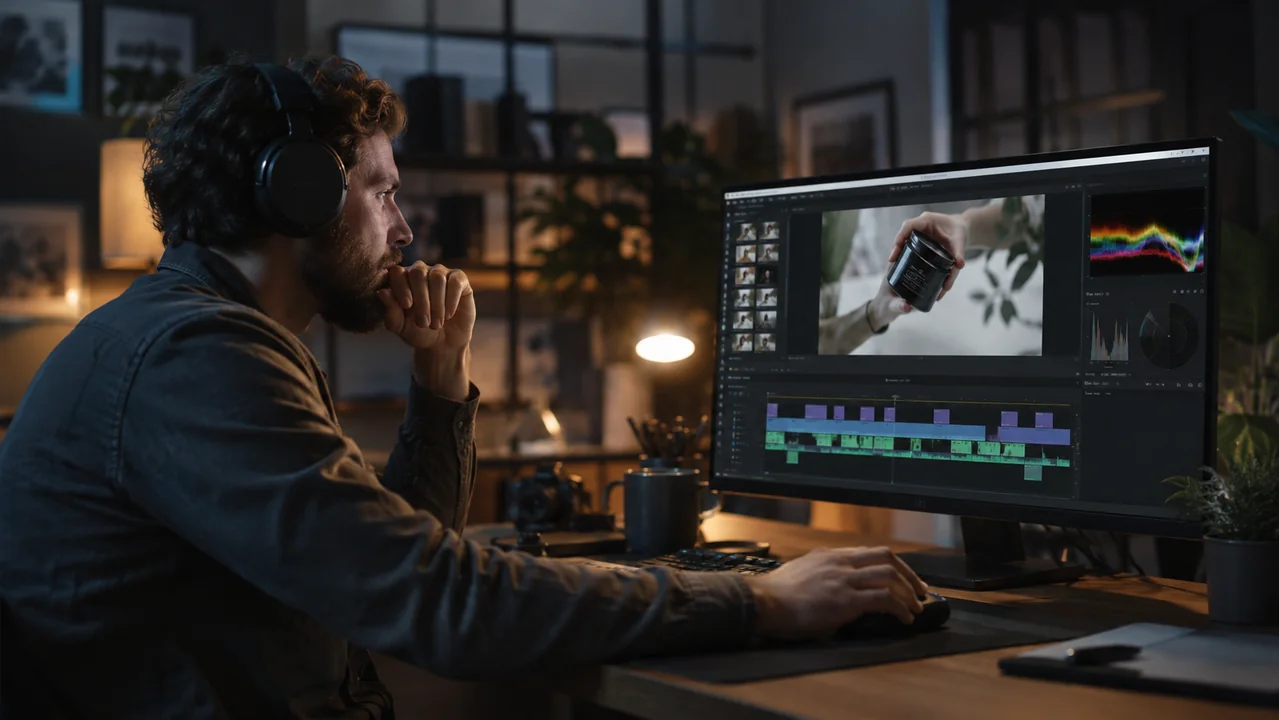
Example prompts
Infovideo Everygen AI Video Generator product reveal
A cobalt ceramic mug rests on a pale wooden workbench. A potter gently rotates it once, showing the curved handle and glossy glaze. Locked camera, natural window light, readable product shape, quiet studio ambience, no captions.
Infovideo Everygen AI Video Generator bakery moment
A baker in a teal apron lifts one tray of golden bread rolls onto a wooden counter. Gentle camera push, warm kitchen light, natural hand movement, stable ending, quiet bakery ambience, no text or logos.
User reviews
H3Max video creator feedback.
H3Max creator reviews

I made a full character PV for my game with MiniMax H3 in one afternoon. The menu UI stayed readable in every frame and the character never went off-model. That used to cost me a contractor and three weeks.

We tested every AI video generator on the market for stylized work. H3 is the only one that held our anime style across cuts. We now use it for pitch reels and animatics on every project.

I uploaded four product photos and got a listing video with music and a voiceover the same day. My click-through rate on the new listings is up 38%. H3 even got the label text on my packaging right.

I ship five vertical videos a week for three brands. MiniMax H3 gets me from brief to draft in under an hour, with sound already synced. My old workflow needed a videographer and two review rounds.

The editing side is what sold me. A client wanted the background of an interview changed — I typed one sentence into MiniMax H3 and the lighting on the subject matched the new scene automatically.

I previsualized my entire short film in MiniMax H3 before we shot a single frame. Rack focus, match cuts, even the title cards — it understands director language, not just keywords.
Infovideo Pricing and Credit Plans
Cancel anytime
Pay once annually; receive 1/12 of your annual Credits each month. The first allocation arrives after payment, followed by monthly subscription anniversaries.
Lite
50% off0.025 / credit
Billed $ yearly179· Save $179.8
Video Models



Image Models



- Includes MiniMax H3 and all premium models
- Up to 1 batch generation task
- Standard generation speed
- Standard generation success rate
- Standard customer support
- Commercial Use License
Standard
50% off0.017 / credit
Billed $ yearly299· Save $299.8
Video Models
Image Models
- Includes MiniMax H3 and all premium models
- Up to 4 batch generation tasks
- Priority processing speed
- High generation success rate
- Priority customer support
- Commercial Use License
Pro
50% off0.014 / credit
Billed $ yearly599· Save $599.8
Video Models
Image Models
- Includes MiniMax H3 and all premium models
- Up to 10 batch generation tasks
- Fastest generation speed
- High generation success rate
- Dedicated account manager
- Commercial Use License
Max
50% off0.012 / credit
Billed $ yearly1,199· Save $1,199.8
Video Models
Image Models
- Includes MiniMax H3 and all premium models
- Up to 10 batch generation tasks
- Fastest generation speed
- High generation success rate
- Dedicated account manager
- Commercial Use License
Pay safely and securely with























FAQ
Frequently asked questions
Is Infovideo Everygen AI Video Generator connected to this workspace?
No. This is an independent H3Max page explaining the search term and providing a short-video workflow. It uses the models, accounts and credits shown in H3Max. It does not transfer an Everygen subscription or open an Everygen project.
What should I make first with Infovideo Everygen AI Video Generator?
Start with one useful product reveal or demonstration. Decide what viewers should see in the opening frame and which action communicates the benefit. A small shot is easier to assess than a draft attempting to deliver an entire campaign at once.
Can Infovideo Everygen AI Video Generator use a product photograph?
The H3Max workspace supports image-to-video with compatible models. Switch to that mode, upload a clear photograph and review the updated quote. Check the full result for changes to shape, labels and hands; an uploaded image does not guarantee exact product reproduction.
Does an Infovideo Everygen AI Video Generator example spend credits?
Use This Prompt prepares the selected brief and supported example settings. It does not submit a generation. Creating a new video requires your explicit Create action and uses the quote displayed for your current model and options.
Can I finish an advertisement in Infovideo Everygen AI Video Generator?
Use the generated clip as footage for your campaign. Assemble multiple shots, add verified product claims and place final typography in your editing workflow. This page provides short-video generation rather than a complete branded ad timeline.
CTA
Infovideo Prepare your Infovideo Everygen AI Video Generator shot
Start with one product benefit and one clear movement. Use Infovideo Everygen AI Video Generator research to shape the brief, then test it with H3Max’s supported video controls and choose the take that helps your campaign.
Prepare a product video