Infovideo Viblo AI alternative for short visual clips
Need a visual opening or supporting shot rather than an entire edited short? This Infovideo Viblo AI alternative focuses on that smaller task. H3Max is an independent workspace running MiniMax H3 Max Turbo, not Viblo or a connected Viblo service. Start with a visible action, generate a clip, and finish your wider edit separately.
Video workspace
Crayon Picture Book — The Moon Can't Sleep
1/94View prompt
Create a 20-second original animation inspired by Crayon Picture Book. The moon can't sleep, so a little girl climbs onto the roof to sing it a lullaby. A picture-book page drawn live in wax crayon on toothy paper, with a watercolour wash that reveals what the crayon was hiding. References (grammar only): Raymond Briggs' *The Snowman* (1982) (hand-textured frames that breathe, wordless tenderness, a lyrical passage carried by one tune, still backgrounds with living figures). Copy none of its characters, song or imagery, and never name it in the film. Use an original story, clear compositions and deliberate transitions. Silent animation.
Introduction
Infovideo What does a Infovideo Viblo AI alternative replace?
Choose a Infovideo Viblo AI alternative around the part of production you actually need, rather than assuming every video tool covers the same process.
Infovideo Understand the broader editing platform
Viblo describes a browser-based short-content platform with automatic clipping, voiceovers, captions, timeline editing, and exports prepared for posting. When choosing a Infovideo Viblo AI alternative, distinguish those finishing tools from the separate task of generating a new piece of footage.
Infovideo Fill a specific visual gap
Perhaps a repair story needs a close view of a maker smoothing a freshly patched denim sleeve. This Infovideo Viblo AI alternative can explore that supporting moment. You bring the editorial context and decide where the generated shot belongs in the finished piece.
Infovideo Know the workspace you are using
Here, the Infovideo Viblo AI alternative starts in text mode with Turbo, five seconds, 480P, 16:9, one output, and native audio. It does not supply Viblo's editing suite. Sign in to create footage, then use your chosen editor for captions and final assembly.

How to use
Infovideo How to use this Infovideo Viblo AI alternative
- STEP 1
Infovideo Choose your starting point
Sign in to this Infovideo Viblo AI alternative and choose MiniMax H3 Max Turbo text mode, or supply an authorized opening image.
- STEP 2
Infovideo Describe the visible event
Describe one folding fan opening, its camera angle, and a quiet ending in this Infovideo Viblo AI alternative; avoid several competing events.
- STEP 3
Infovideo Review the live quote
Start this Infovideo Viblo AI alternative at five seconds and 480P, review framing and the Create quote, then submit one generation.
- STEP 4
Infovideo Select your usable shot
Watch the Infovideo Viblo AI alternative result through its ending, check sound and object details, then download the clip for your separate edit.

Features
Infovideo Give your Infovideo Viblo AI alternative one visible hook
A useful Infovideo Viblo AI alternative opening makes a small event immediately understandable. Build interest through a change viewers can actually see.
Infovideo Reveal rather than announce
A hand peels blue masking tape from a painted wooden panel, revealing a clean cream stripe. Give this Infovideo Viblo AI alternative that specific reveal instead of an instruction to look exciting. The visible transformation supplies the opening idea without a complicated explanation.
- Start where the action is already about to happen.
- Keep the Infovideo Viblo AI alternative reveal inside one clearly framed shot.
Infovideo Keep the cause in view
Show the tape, the fingers holding it, and the newly exposed edge together. A Infovideo Viblo AI alternative clip becomes confusing when the hand leaves the frame or the result appears without a visible cause. Keep enough context to explain the movement.
Infovideo Stop after the payoff
Let the hand finish peeling and briefly hold the clean edge. A Infovideo Viblo AI alternative hook needs no immediate second event. The pause makes the result understandable and provides a useful editing point.

Infovideo Use the Infovideo Viblo AI alternative for supporting footage
Give each Infovideo Viblo AI alternative insert a clear relationship to the surrounding story. Supporting footage should add information, not merely fill a gap.
Infovideo Make the insert answer something
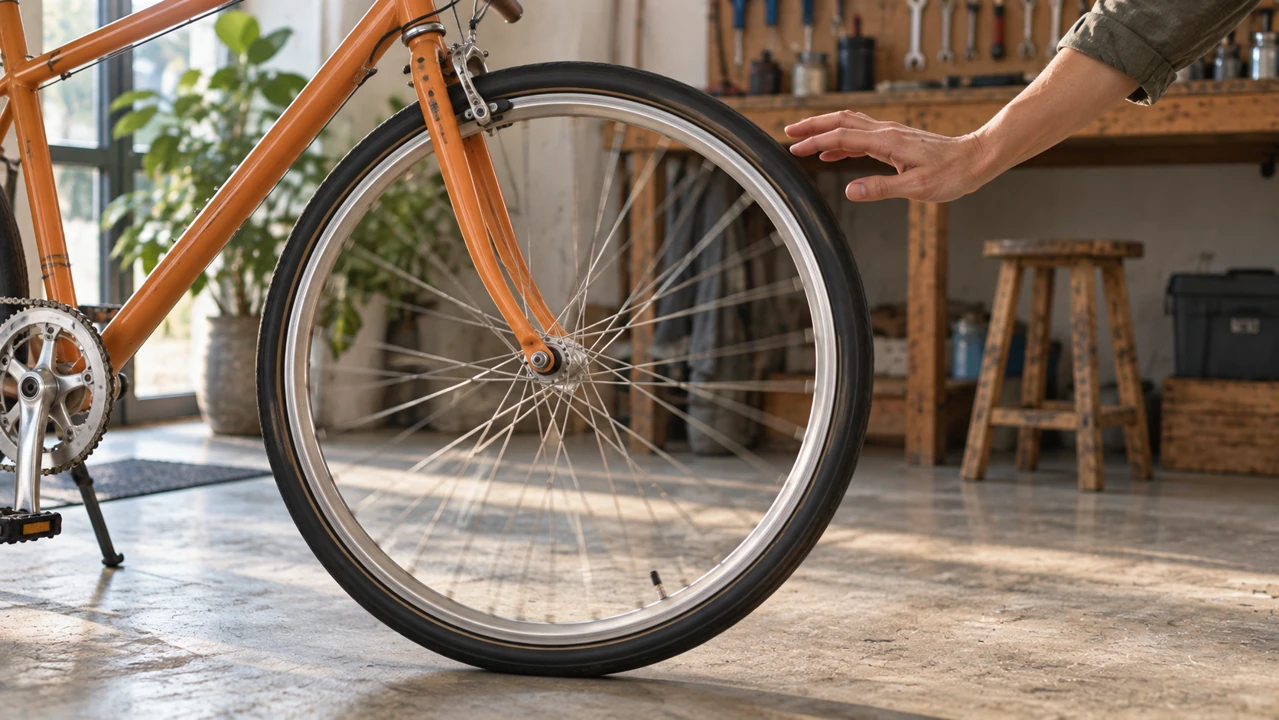
For a bicycle maintenance explanation, show an adult hand giving one unbranded bicycle wheel a gentle spin. This Infovideo Viblo AI alternative insert illustrates a relevant action. It should accompany the explanation without pretending to prove the condition of a customer's actual bicycle.
- Choose a detail connected to the sentence around the insert.
- Review Infovideo Viblo AI alternative footage for believable contact between hands and objects.
Infovideo Match the surrounding visual scale
A spoke detail can follow a wider repair scene without repeating its composition. Decide whether your Infovideo Viblo AI alternative insert needs context or detail. Do not bury a tiny action inside an enormous setting.
Infovideo Leave room for narration later
Request restrained workshop ambience when an insert will sit beneath your separately prepared narration. The Infovideo Viblo AI alternative creates native audio with the picture, so listen for distracting additions. Balance or replace the soundtrack in your own editor when preparing the complete short.
Infovideo Frame Infovideo Viblo AI alternative clips around the subject
Plan the usable image area before generating. A Infovideo Viblo AI alternative shot should remain understandable where viewers will actually encounter it.
Infovideo Keep the demonstration readable
An adult maker raising a repaired jacket needs room for the face, both hands, and the garment. Brief this Infovideo Viblo AI alternative with a medium-wide view rather than an extreme close-up. The viewer should see the demonstrated object without searching around the frame.
- Keep meaningful edges comfortably inside the chosen composition.
- Preview Infovideo Viblo AI alternative footage at the small size of its destination.
Infovideo Separate a crop from a new shot
A vertical crop can remove important parts of a wide frame. Image mode in this Infovideo Viblo AI alternative follows the source proportions. Prepare the source for its destination instead of relying on cropping afterward.
Infovideo Reserve space without burning in copy
Leave a quiet area around the subject when you plan to add a short headline later. Ask the Infovideo Viblo AI alternative for the photograph-like scene itself. Add captions and final wording separately so spelling, timing, and line breaks remain under your control.

Infovideo Anchor the Infovideo Viblo AI alternative with your own image
Switch this Infovideo Viblo AI alternative to image mode when a particular object or composition matters more than inventing the entire scene from text.
Infovideo Upload the object you intend to show
An authorized photograph of a mustard fabric pouch establishes its shape, zipper, and table position. In the Infovideo Viblo AI alternative, this required opening frame replaces a long verbal reconstruction of the object's appearance.
Infovideo Ask for a restrained movement
Describe a hand opening the pouch slightly while its body remains on the table. Give the Infovideo Viblo AI alternative a movement supported by what the photograph shows. Inspect the zipper, stitching, fingers, and edges rather than assuming the source remains perfectly unchanged.
Infovideo Add an ending only when useful
An optional ending frame can indicate the same pouch with its opening gently widened. Keep the endpoints compatible. This Infovideo Viblo AI alternative still needs a short movement instruction; two unrelated pictures do not explain a plausible journey between their different scenes.

Infovideo Review Infovideo Viblo AI alternative clips for your wider edit
Select Infovideo Viblo AI alternative footage for its usefulness within a sequence. An attractive opening frame is not enough to approve the full moving result.
Infovideo Watch the ending as closely as the start
Watch a hand tying ribbon around folded fabric until the gesture settles. Inspect the Infovideo Viblo AI alternative result for disappearing fingers, changing knots, and sudden camera movement. The ending matters alongside the opening hook.
Infovideo Make one purposeful revision
Keep a promising composition and change movement size or camera distance first. Compare Infovideo Viblo AI alternative attempts using that single difference. Retain useful wording rather than replacing the subject, atmosphere, action, and framing together.
Infovideo Check the request before creating
This Infovideo Viblo AI alternative supports five to fifteen seconds and 480P, 768P, or 1080P. Review the live Create quote for your configuration. Follow the existing generation record and failure status, then download approved footage for assembly in your separate editing workflow.

Example prompts
Infovideo A clean painted-edge reveal
Five-second continuous close-medium shot. One adult hand slowly peels blue masking tape from a terracotta-painted wooden panel, revealing one clean cream stripe. Keep the fingers, tape, and newly exposed edge fully visible. Steady camera, soft side light, gentle tape-peeling sound and quiet room ambience. End with a brief pause. No written labels, extra hands, or cuts.
Infovideo A useful bicycle repair insert
Five-second workshop insert. One adult hand gives the front wheel of an unbranded orange bicycle a gentle spin and moves clear while the wheel turns. Frame the complete wheel and the hand from a low side angle. Soft daylight, restrained mechanical whir and room ambience. Keep the bicycle stationary and its structure coherent. No dialogue, titles, or scene changes.
User reviews
H3Max video creator feedback.
H3Max creator reviews

I made a full character PV for my game with MiniMax H3 in one afternoon. The menu UI stayed readable in every frame and the character never went off-model. That used to cost me a contractor and three weeks.

We tested every AI video generator on the market for stylized work. H3 is the only one that held our anime style across cuts. We now use it for pitch reels and animatics on every project.

I uploaded four product photos and got a listing video with music and a voiceover the same day. My click-through rate on the new listings is up 38%. H3 even got the label text on my packaging right.

I ship five vertical videos a week for three brands. MiniMax H3 gets me from brief to draft in under an hour, with sound already synced. My old workflow needed a videographer and two review rounds.

The editing side is what sold me. A client wanted the background of an interview changed — I typed one sentence into MiniMax H3 and the lighting on the subject matched the new scene automatically.

I previsualized my entire short film in MiniMax H3 before we shot a single frame. Rack focus, match cuts, even the title cards — it understands director language, not just keywords.
Infovideo Pricing and Credit Plans
Cancel anytime
Pay once annually; receive 1/12 of your annual Credits each month. The first allocation arrives after payment, followed by monthly subscription anniversaries.
Lite
50% off0.025 / credit
Billed $ yearly179· Save $179.8
Video Models



Image Models



- Includes MiniMax H3 and all premium models
- Up to 1 batch generation task
- Standard generation speed
- Standard generation success rate
- Standard customer support
- Commercial Use License
Standard
50% off0.017 / credit
Billed $ yearly299· Save $299.8
Video Models
Image Models
- Includes MiniMax H3 and all premium models
- Up to 4 batch generation tasks
- Priority processing speed
- High generation success rate
- Priority customer support
- Commercial Use License
Pro
50% off0.014 / credit
Billed $ yearly599· Save $599.8
Video Models
Image Models
- Includes MiniMax H3 and all premium models
- Up to 10 batch generation tasks
- Fastest generation speed
- High generation success rate
- Dedicated account manager
- Commercial Use License
Max
50% off0.012 / credit
Billed $ yearly1,199· Save $1,199.8
Video Models
Image Models
- Includes MiniMax H3 and all premium models
- Up to 10 batch generation tasks
- Fastest generation speed
- High generation success rate
- Dedicated account manager
- Commercial Use License
Pay safely and securely with























FAQ
Frequently asked questions
Is this Infovideo Viblo AI alternative the complete Viblo platform?
No. H3Max generates short clips using MiniMax, without a Viblo integration or partnership. It does not replace automatic clipping, a caption engine, or timeline finishing. Choose it for new visual material, then complete those other tasks separately.
Does the Infovideo Viblo AI alternative require a source image?
Text mode does not. Use an authorized opening image when the starting composition is important. Image mode requires that first frame and accepts an optional ending frame. Its proportions follow the uploaded image rather than a separate text-mode framing choice.
How long can a Infovideo Viblo AI alternative clip be?
Choose five to fifteen seconds with MiniMax H3 Max Turbo. The starting request is five seconds at 480P, and 768P or 1080P are also available. Choose the duration for one readable event, not a whole edited story.
Can the Infovideo Viblo AI alternative publish my finished short?
No. Download the approved clip and bring it into your own editing and publishing workflow. Add final narration, captions, and platform-specific layout there. A generated visual hook is a component, not an automatically completed or posted short.
What should I check before using a Infovideo Viblo AI alternative clip?
Watch the full movement and listen to the audio. Verify any product details, faces, or actions that carry meaning. A vivid generated scene can contain mistakes, so select it for the intended story only after reviewing those details.
CTA
Infovideo Try a focused Infovideo Viblo AI alternative clip
Bring one visible event and a clear place for it in your story. Use this Infovideo Viblo AI alternative to explore the shot, review its movement and sound, and download the version that serves your next edit.
Create a short visual clip