Infovideo Text to Video for a scene worth watching
Start with a moment you can describe: a paper boat crossing a puddle, a baker opening a window, or lanterns moving above a courtyard. H3Max Infovideo Text to Video uses MiniMax H3 Max Turbo to explore that moment with motion and native audio. Give Infovideo Text to Video a clear action before adding spectacle.
Video workspace
Crayon Picture Book — The Moon Can't Sleep
1/94View prompt
Create a 20-second original animation inspired by Crayon Picture Book. The moon can't sleep, so a little girl climbs onto the roof to sing it a lullaby. A picture-book page drawn live in wax crayon on toothy paper, with a watercolour wash that reveals what the crayon was hiding. References (grammar only): Raymond Briggs' *The Snowman* (1982) (hand-textured frames that breathe, wordless tenderness, a lyrical passage carried by one tune, still backgrounds with living figures). Copy none of its characters, song or imagery, and never name it in the film. Use an original story, clear compositions and deliberate transitions. Silent animation.
Introduction
Infovideo Build Infovideo Text to Video around one shot
A useful Infovideo Text to Video brief describes something happening, not just something beautiful. Decide what changes between the beginning and end of your clip.
Infovideo Choose a visible event
A lantern swaying as its light reaches a stone wall gives the viewer an action to follow. Give Infovideo Text to Video an observable event rather than an abstract request for wonder. The mood should emerge from the subject, surroundings, and movement.
Infovideo Start without source footage
Use Infovideo Text to Video when you want to invent a scene from writing. You do not need an uploaded photograph for this mode. When a specific existing composition matters more than exploration, an image-based starting point is the more appropriate choice.
Infovideo Keep the first draft manageable
The starting setup is MiniMax H3 Max Turbo, five seconds, 480P, and 16:9. Infovideo Text to Video supports durations from five to fifteen seconds and 480P, 768P, or 1080P. Begin with a small assignment that makes the first result easy to judge.
How to use
Infovideo How to create with Infovideo Text to Video
- PromptSTEP 1
Infovideo Describe the moment
Select MiniMax H3 Max Turbo for Infovideo Text to Video, then describe one subject, setting, and action that can finish within five seconds.
- ModelMiniMax H3 Max Turbo480P16:95sPromptSTEP 2
Infovideo Direct camera and sound
Give Infovideo Text to Video one camera direction and relevant ambient sounds, keeping the visual action readable rather than adding competing events.
- First frameLast frame
 0.0s
 2.6s
 4.7sSTEP 3
Infovideo Check and generate
Start Infovideo Text to Video at five seconds, 480P, and 16:9, review the displayed credits, and generate your first scene.
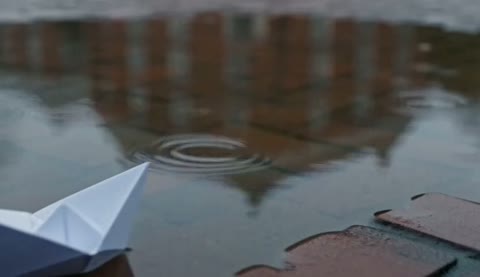
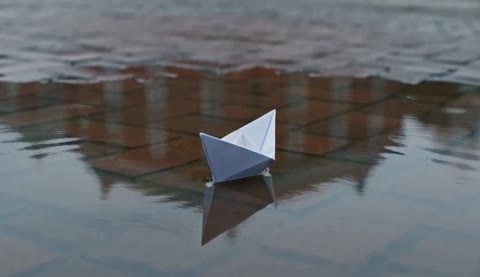
- Five-second continuous shot. One folded paper boat drifts from the near edge of a shallow puddle toward its center after rain. Low camera beside the water, gentle forward movement, overcast light and soft brick reflections. The boat settles before the ending. Quiet dripping water and a faint breeze; no dialogue, captions, or sudden cuts.DownloadSTEP 4
Infovideo Watch and refine
Review Infovideo Text to Video movement and native audio together, then revise one specific weakness before choosing the clip to download.
Features
Infovideo Give Infovideo Text to Video a beginning and an ending
Write the action as a short progression. Infovideo Text to Video needs room for the viewer to recognize the subject before the important movement occurs.
Infovideo Describe the opening state
Place the subject before moving it: a paper boat rests beside the near edge of a shallow puddle. Then tell Infovideo Text to Video that a light breeze carries it toward the center. A clear starting state makes the requested change understandable.
- Name one subject and one destination for its movement.
- Keep the Infovideo Text to Video action within a single recognizable setting.
Infovideo Choose an achievable beat
A baker lifts a tray and sets it on a counter; a cyclist passes a doorway. These are focused Infovideo Text to Video assignments. Packing an arrival, conversation, chase, and departure into one short request leaves little space for any moment to read.
Infovideo Leave a moment to settle
Ask for the action to resolve rather than stopping at its busiest point. A cup can come to rest or a curtain can settle. Infovideo Text to Video directions that include a quiet ending give you a clearer candidate to assess and reuse.
Infovideo Separate camera movement from Infovideo Text to Video action
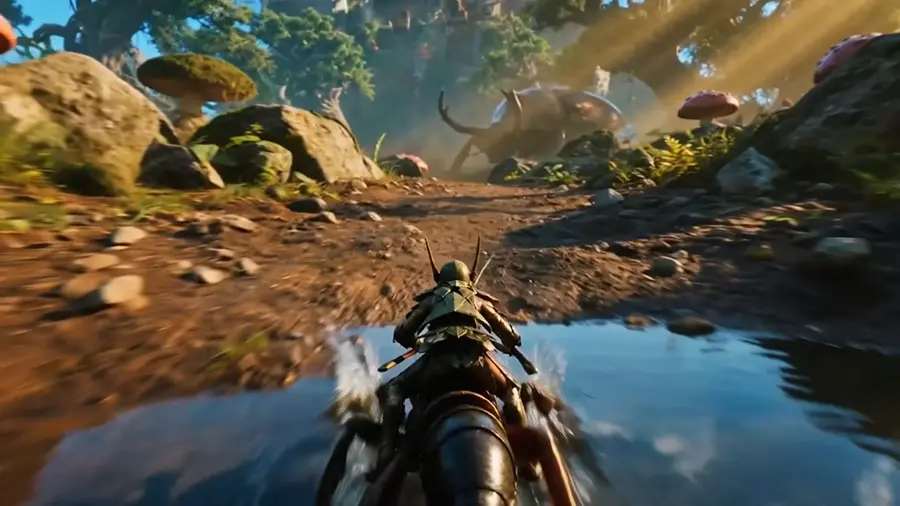
The subject and camera do not need to move together. Give Infovideo Text to Video a deliberate viewpoint instead of asking every part of the scene to change.
Infovideo Pick the useful distance
Choose a close view for a small hand movement or a wider frame for someone crossing a room. Explain that distance in Infovideo Text to Video before requesting detail. A tiny subject in an enormous landscape may hide the action you wanted viewers to notice.
- Keep the main action large enough to understand on a phone.
- Use Infovideo Text to Video framing to establish what the audience watches first.
Infovideo Give the camera one job
Try a slow push toward a window or a gentle sideways move beside a walking subject. Avoid combining an orbit, zoom, and sudden overhead angle in one Infovideo Text to Video request. One purposeful movement is easier to evaluate than several competing directions.
Infovideo Control the background relationship
Describe what stays behind the subject and what enters the foreground. In Infovideo Text to Video, this helps define depth without demanding constant motion. A stationary railing and distant hillside can make a passing character feel situated rather than floating through an undefined backdrop.
Infovideo Connect Infovideo Text to Video lighting and sound
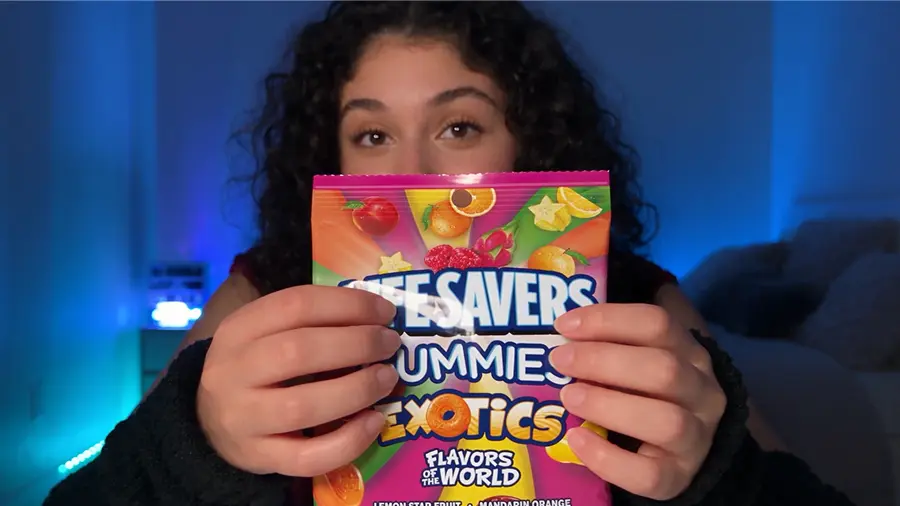
Light and audio should belong to the same place. Direct Infovideo Text to Video with a coherent atmosphere that supports the visible action rather than competing with it.
Infovideo Choose a motivated light source
Morning light through a bakery window suggests soft shadows across the counter. A courtyard lantern suggests a small pool of warm light. Give Infovideo Text to Video one primary source so faces, surfaces, and moving objects can be reviewed against the same visual logic.
- Describe where illumination comes from and where shadows fall.
- Keep Infovideo Text to Video weather and lighting descriptions consistent throughout the shot.
Infovideo Name sounds the scene needs
Turbo generates native audio alongside the picture. Tell Infovideo Text to Video about the sounds that matter: a door creak, footsteps on stone, or distant rain. A short atmospheric description is more useful than asking every visible object to make a dramatic sound.
Infovideo Separate ambience from the event
A fountain can provide a quiet background while one splash marks the main action. Describe that relationship in Infovideo Text to Video. Review the generated soundtrack with the picture, because an attractive image can still arrive with distracting or poorly matched sound.
Infovideo Give Infovideo Text to Video a practical destination
Choose the job your clip will perform. Infovideo Text to Video can explore a mood, illustrate a moment, or provide a visual bridge between other pieces of content.
Infovideo Create an establishing moment
Use a slow view of an opening shop or a quiet courtyard to introduce a setting. A Infovideo Text to Video establishing shot should explain where the viewer is before demanding attention to a small gesture. Keep unrelated characters and decorative action outside the brief.
Infovideo Illustrate an idea without overclaiming
For a presentation about repair, show a fictional craftsperson examining a worn chair. Infovideo Text to Video can visualize the theme without pretending to document a real customer, product test, or historical event. Make the scene serve the message rather than invent evidence for it.
Infovideo Plan room for later text
When a title will be added in your editing workflow, reserve a quiet area in the composition. Ask Infovideo Text to Video to keep important action outside that space. Separately added typography is easier to revise than lettering that becomes part of the generated scene.
Infovideo Improve Infovideo Text to Video through focused comparison
Watch the whole result before rewriting your prompt. A Infovideo Text to Video revision should address the weakest part of the shot without discarding every successful decision.
Infovideo Review movement before polish
Check whether the event actually happens and finishes. Then inspect hands, object shapes, contact with surfaces, and abrupt visual changes. Infovideo Text to Video evaluation is more useful when you separate the action problem from preferences about color or cinematic styling.
Infovideo Change one instruction
Keep a promising setting and revise only the camera distance, movement speed, or action. This makes successive Infovideo Text to Video attempts easier to compare. Replacing the subject, weather, lens description, and ending together obscures which adjustment made the next result more useful.
Infovideo Select settings for the next purpose
Once the scene works, consider a longer duration or another supported resolution. Check the credits shown for the current Infovideo Text to Video configuration before submitting. Save your chosen brief with the clip so the next experiment starts from an explicit creative decision.
Example prompts
Infovideo Paper boat after rain
Five-second continuous shot. One folded paper boat drifts from the near edge of a shallow puddle toward its center after rain. Low camera beside the water, gentle forward movement, overcast light and soft brick reflections. The boat settles before the ending. Quiet dripping water and a faint breeze; no dialogue, captions, or sudden cuts.
Infovideo Opening the neighborhood bakery
Five-second medium-wide shot of a fictional adult baker placing a tray of plain bread rolls on a wooden counter beside an open window. Warm morning side light, steady camera, one clear movement ending with the tray at rest. Soft tray contact, distant street ambience, and light fabric movement. No branding, written signs, dialogue, or scene changes.
User reviews
H3Max video creator feedback.
H3Max creator reviews

I made a full character PV for my game with MiniMax H3 in one afternoon. The menu UI stayed readable in every frame and the character never went off-model. That used to cost me a contractor and three weeks.

We tested every AI video generator on the market for stylized work. H3 is the only one that held our anime style across cuts. We now use it for pitch reels and animatics on every project.

I uploaded four product photos and got a listing video with music and a voiceover the same day. My click-through rate on the new listings is up 38%. H3 even got the label text on my packaging right.

I ship five vertical videos a week for three brands. MiniMax H3 gets me from brief to draft in under an hour, with sound already synced. My old workflow needed a videographer and two review rounds.

The editing side is what sold me. A client wanted the background of an interview changed — I typed one sentence into MiniMax H3 and the lighting on the subject matched the new scene automatically.

I previsualized my entire short film in MiniMax H3 before we shot a single frame. Rack focus, match cuts, even the title cards — it understands director language, not just keywords.
Infovideo Pricing and Credit Plans
Cancel anytime
Pay once annually; receive 1/12 of your annual Credits each month. The first allocation arrives after payment, followed by monthly subscription anniversaries.
Lite
50% off0.025 / credit
Billed $ yearly179· Save $179.8
Video Models



Image Models



- Includes MiniMax H3 and all premium models
- Up to 1 batch generation task
- Standard generation speed
- Standard generation success rate
- Standard customer support
- Commercial Use License
Standard
50% off0.017 / credit
Billed $ yearly299· Save $299.8
Video Models
Image Models
- Includes MiniMax H3 and all premium models
- Up to 4 batch generation tasks
- Priority processing speed
- High generation success rate
- Priority customer support
- Commercial Use License
Pro
50% off0.014 / credit
Billed $ yearly599· Save $599.8
Video Models
Image Models
- Includes MiniMax H3 and all premium models
- Up to 10 batch generation tasks
- Fastest generation speed
- High generation success rate
- Dedicated account manager
- Commercial Use License
Max
50% off0.012 / credit
Billed $ yearly1,199· Save $1,199.8
Video Models
Image Models
- Includes MiniMax H3 and all premium models
- Up to 10 batch generation tasks
- Fastest generation speed
- High generation success rate
- Dedicated account manager
- Commercial Use License
Pay safely and securely with























FAQ
Frequently asked questions
Does Infovideo Text to Video require an uploaded image?
No. This workflow starts from your written scene. Describe the subject, setting, movement, and sound directly. Use image mode instead when you need an existing photograph or illustration to establish the opening composition.
How long can a Infovideo Text to Video clip be?
MiniMax H3 Max Turbo supports five to fifteen seconds, with five seconds as the starting duration. The available resolutions are 480P, 768P, and 1080P. Choose settings for the scene, then review the displayed credits.
Can I describe dialogue as well as background sound?
You can include sound direction in Infovideo Text to Video, but a request does not guarantee exact speech or mouth timing. For an initial scene, a clear action with simple environmental audio is easier to judge than a conversation.
Can one request create a complete film?
Treat Infovideo Text to Video as a short-clip workflow. Develop individual shots with their own actions and endings, then assemble selected material in your separate editing workflow. One request should not be treated as an unlimited production.
Why did the action change between attempts?
Infovideo Text to Video generates a new interpretation of your instructions. Simplify the scene, identify the essential movement, and compare the full results. Repeated wording does not ensure identical subjects, timing, or object details across different requests.
CTA
Infovideo Give Infovideo Text to Video a moment to explore
Choose one visible action, a useful viewpoint, and a believable atmosphere. Review your settings and displayed credits, then create a draft you can watch, compare, and refine.
Create your first scene