Infovideo Flow AI alternative for a clearly directed short shot
Plan the shot before building the sequence. This Infovideo Flow AI alternative offers an independent H3Max workflow using MiniMax H3 Max Turbo, not Google's models or a Flow integration. Describe a scene, direct its movement and sound, and review a short clip before assembling your selected shots elsewhere.
Video workspace
Crayon Picture Book — The Moon Can't Sleep
1/94View prompt
Create a 20-second original animation inspired by Crayon Picture Book. The moon can't sleep, so a little girl climbs onto the roof to sing it a lullaby. A picture-book page drawn live in wax crayon on toothy paper, with a watercolour wash that reveals what the crayon was hiding. References (grammar only): Raymond Briggs' *The Snowman* (1982) (hand-textured frames that breathe, wordless tenderness, a lyrical passage carried by one tune, still backgrounds with living figures). Copy none of its characters, song or imagery, and never name it in the film. Use an original story, clear compositions and deliberate transitions. Silent animation.
Introduction
Infovideo What does a Infovideo Flow AI alternative offer?
A Infovideo Flow AI alternative should match a defined production task. Here, that task is generating a short, directed shot rather than recreating an entire filmmaking environment.
Infovideo Distinguish the filmmaking environment
Google introduced Flow as an AI filmmaking tool built around its generative models, with scene and asset creation central to the experience. When considering a Infovideo Flow AI alternative, separate that broader environment from the particular shot you need to generate today.
Infovideo Start with the shot you can explain
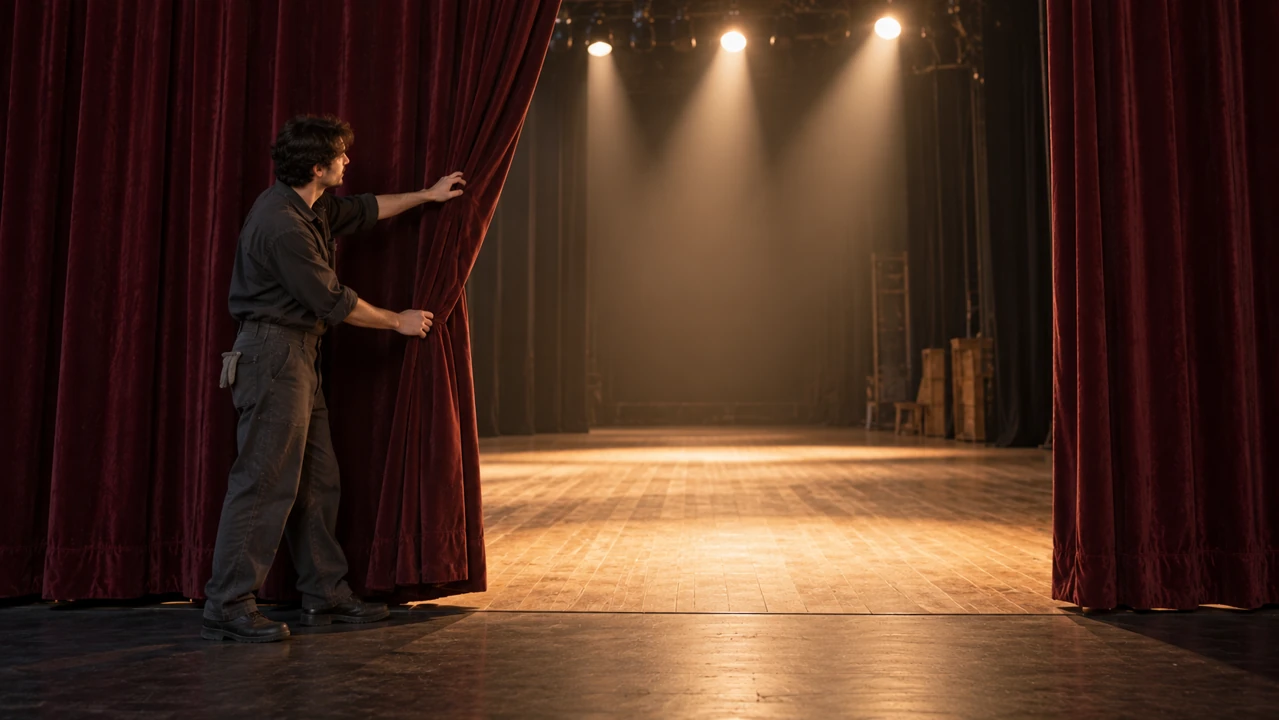
An adult stagehand draws one heavy theater curtain aside, revealing a softly lit empty stage. This Infovideo Flow AI alternative can explore that single reveal. The curtain, lighting change, and final pause provide enough information for a useful shot without a complex sequence.
Infovideo Use the actual H3Max setup
The Infovideo Flow AI alternative starts in text mode at five seconds, 480P, 16:9, with one output and native audio. Turbo also supports five to fifteen seconds and 768P or 1080P. Sign in and check the displayed Create quote before generating.
How to use
Infovideo How to use this Infovideo Flow AI alternative
- STEP 1
Infovideo Choose text or a frame
Sign in to this Infovideo Flow AI alternative and select MiniMax H3 Max Turbo text mode, or upload an authorized opening image.
- STEP 2
Infovideo Define the shot
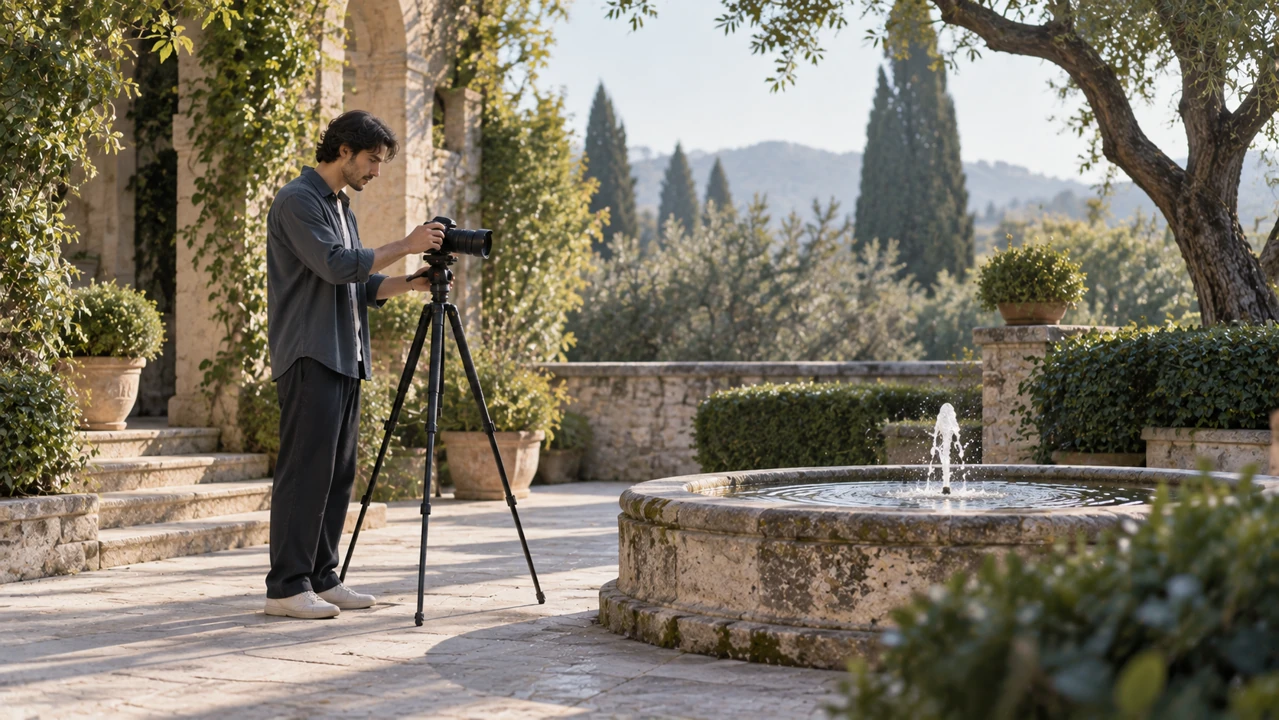
Give the Infovideo Flow AI alternative one fountain ripple, a steady viewpoint, coherent light, and quiet water sounds with a settled ending.
- STEP 3
Infovideo Create one candidate
Set this Infovideo Flow AI alternative to five seconds and 480P, confirm framing and the live Create quote, then generate one clip.
- STEP 4
Infovideo Review before joining shots
Watch the Infovideo Flow AI alternative result for continuity and matching audio, then download your selection for precise assembly in a separate editor.
Features
Infovideo Give the Infovideo Flow AI alternative a stable scene
A clear Infovideo Flow AI alternative shot establishes where the subject is going and what remains in place while that movement unfolds.
Infovideo Choose a route through the frame
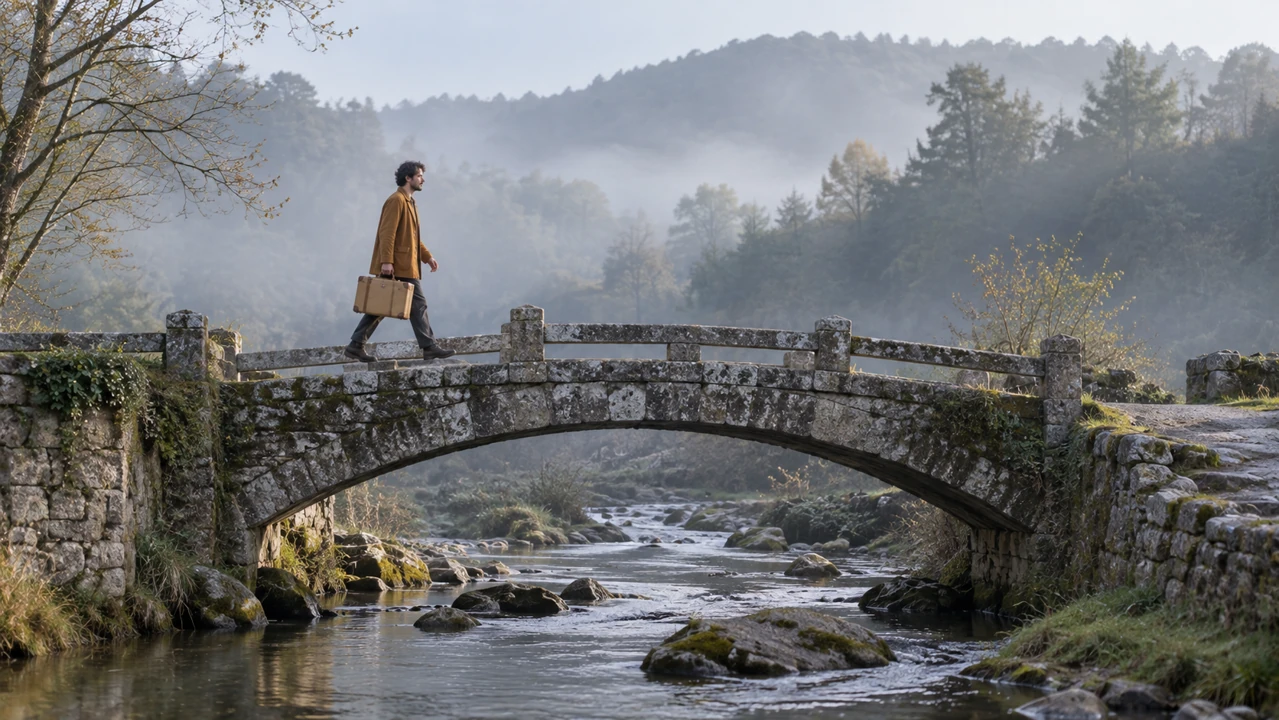
An adult traveler crosses a narrow stone footbridge left to right with a tan suitcase. Give the Infovideo Flow AI alternative a clear route. Leave space beyond the traveler for the walk to finish naturally.
- Keep the landing point visible before the movement begins.
- Describe the Infovideo Flow AI alternative subject relative to the bridge and far bank.
Infovideo Keep landmarks consistent
Name the parapet, the far bank, and the narrow stream beneath the bridge. These relationships make a Infovideo Flow AI alternative brief easier to judge. Watch whether fixed landmarks drift or change shape instead of evaluating the moving subject in isolation.
Infovideo Plan the next shot separately
Record which side the traveler exits and the direction of the light for a later continuation. A Infovideo Flow AI alternative can support that planning through separate requests. It does not automatically connect generated clips or preserve every costume detail across them.
Infovideo Direct one camera idea with the Infovideo Flow AI alternative
Choose whether the subject or the viewpoint carries the motion. A Infovideo Flow AI alternative request becomes difficult to assess when everything changes at once.
Infovideo Move around a quiet subject
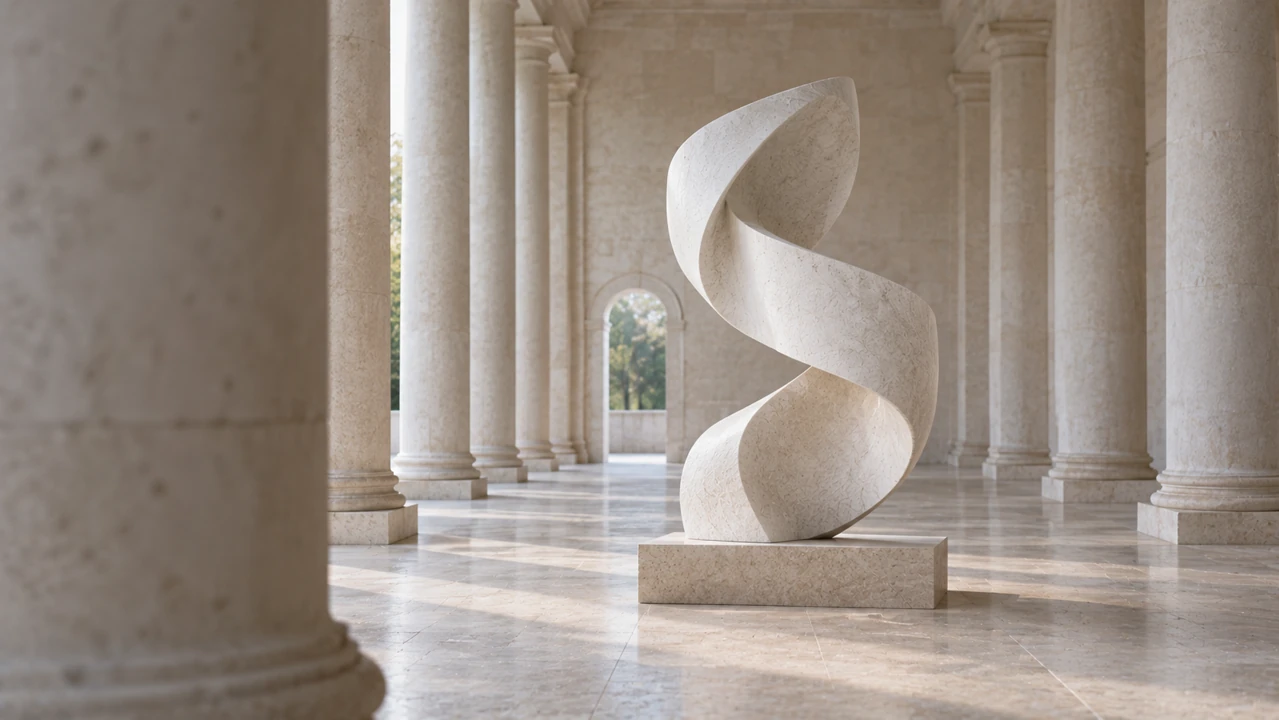
A white stone sculpture stays stationary during a sideways camera move through an empty colonnade. Direct the Infovideo Flow AI alternative toward changing overlaps between columns and sculpture. Depth comes from the viewpoint, not object movement.
- State the starting distance and keep the main shape readable.
- Give the Infovideo Flow AI alternative one camera path rather than several simultaneous moves.
Infovideo Describe the consequence of movement
Instead of only requesting cinematic motion, explain that a nearby column slides out of the foreground while the sculpture stays central. The Infovideo Flow AI alternative receives a more concrete assignment. Review whether that spatial relationship remains coherent throughout the shot.
Infovideo Avoid treating language as a rig
A written camera instruction guides generation; it is not a calibrated physical camera path. Use the Infovideo Flow AI alternative to explore the resulting viewpoint, then judge its usefulness. Reduce the movement when the shot reveals too much invented architecture or changing geometry.
Infovideo Start the Infovideo Flow AI alternative from a prepared image
Use image mode in this Infovideo Flow AI alternative when an existing composition carries important decisions about the performer, setting, or light.
Infovideo Make the opening pose readable
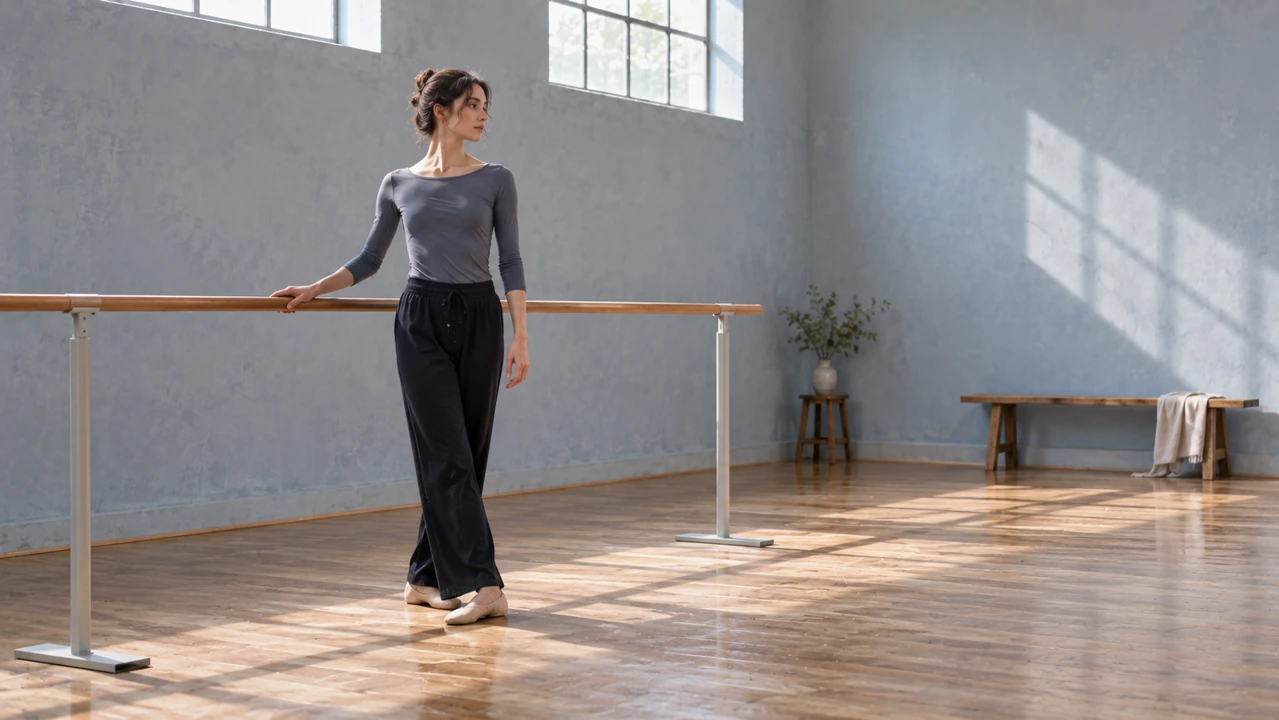
An authorized photograph of an adult dancer resting one hand on a rehearsal barre establishes a specific pose. Upload it as the required starting frame for the Infovideo Flow AI alternative. Keep the full acting area visible, including the arm that will move.
Infovideo Choose a reachable ending
An optional ending image might show that same arm raised slightly while the body remains beside the barre. Give the Infovideo Flow AI alternative a restrained transition between compatible poses. Radically different viewpoints or costumes make the requested movement less clearly defined.
Infovideo Prepare proportions before uploading
Image-mode proportions follow the source rather than the text-mode 16:9 default. Before using the Infovideo Flow AI alternative, prepare a deliberate crop with headroom and hand space. Check the ending image for compatible framing.
Infovideo Connect Infovideo Flow AI alternative light, motion, and sound
A believable Infovideo Flow AI alternative atmosphere comes from details that agree. Choose a visible light source and sounds that belong to the scene.
Infovideo Let the environment supply the event
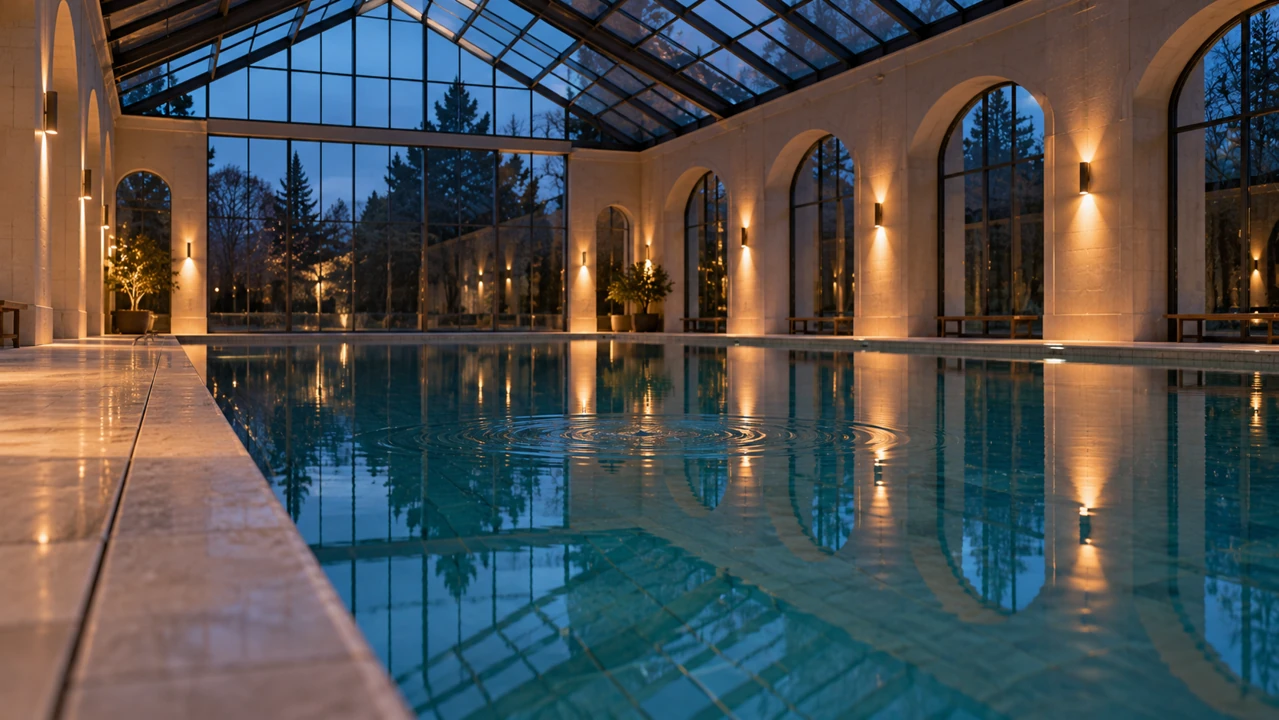
In an empty glass-roofed swimming hall at dusk, a ripple spreads beneath warm wall lights. This Infovideo Flow AI alternative scene needs little action. Cool skylight and warm reflections establish atmosphere around the moving water.
- Keep changing reflections connected to the visible water surface.
- Let Infovideo Flow AI alternative atmosphere support the shot rather than overwhelm it.
Infovideo Separate event sound from ambience
Ask for a small water sound against quiet indoor room tone. The Infovideo Flow AI alternative generates native audio with the picture, so describe both their relationship and restraint. Listen for sounds suggesting people or activity that the empty scene does not show.
Infovideo Check the atmosphere through the ending
Look for sudden changes in window brightness, shadows, or the color of reflected light. A Infovideo Flow AI alternative clip should be reviewed across its full duration. A convincing opening can still shift into a different lighting setup halfway through an otherwise simple scene.
Infovideo Review Infovideo Flow AI alternative shots before assembly
Treat Infovideo Flow AI alternative output as footage to select, not an automatically approved sequence. Review the action, continuity details, and transition points separately.
Infovideo Choose the detail that anchors continuity
A prop assistant checking a worn suitcase's buckle illustrates continuity review. For a Infovideo Flow AI alternative sequence, record the handle, color, and surface marks that matter. Compare them across actual clips rather than trusting descriptions.
Infovideo Compare one change at a time
Keep a useful source or scene brief, then change only the camera distance, action size, or sound direction. This makes Infovideo Flow AI alternative attempts easier to evaluate. Increasing resolution does not resolve a misunderstood action; revise the instruction that caused the mismatch first.
Infovideo Hand off a deliberate selection
Follow the existing generation record and inspect any failure status before retrying. Download your approved Infovideo Flow AI alternative clip with its brief. Assemble shots, balance audio, and set exact transition timing in your separate editor.

Example prompts
Infovideo A quiet crossing with a clear destination
Five-second continuous wide shot. One fictional adult traveler in a muted ochre coat crosses a narrow stone footbridge from left to right carrying a small tan suitcase. Steady eye-level camera, cool morning light, quiet water below and measured footsteps. Keep the bridge and banks stationary. Finish when the traveler reaches the far end. No captions, extra people, or cuts.
Infovideo Reveal the sculpture through the columns
Five-second continuous gallery shot. One white abstract stone sculpture remains stationary in an empty colonnade. The camera moves slowly sideways so one foreground column slips out of view, revealing the sculpture without orbiting it. Soft overcast light, consistent pale stone surfaces, subdued room ambience. End with the full sculpture visible. No people, plaques, lettering, or sudden zooms.
User reviews
H3Max video creator feedback.
H3Max creator reviews

I made a full character PV for my game with MiniMax H3 in one afternoon. The menu UI stayed readable in every frame and the character never went off-model. That used to cost me a contractor and three weeks.

We tested every AI video generator on the market for stylized work. H3 is the only one that held our anime style across cuts. We now use it for pitch reels and animatics on every project.

I uploaded four product photos and got a listing video with music and a voiceover the same day. My click-through rate on the new listings is up 38%. H3 even got the label text on my packaging right.

I ship five vertical videos a week for three brands. MiniMax H3 gets me from brief to draft in under an hour, with sound already synced. My old workflow needed a videographer and two review rounds.

The editing side is what sold me. A client wanted the background of an interview changed — I typed one sentence into MiniMax H3 and the lighting on the subject matched the new scene automatically.

I previsualized my entire short film in MiniMax H3 before we shot a single frame. Rack focus, match cuts, even the title cards — it understands director language, not just keywords.
Infovideo Pricing and Credit Plans
Cancel anytime
Pay once annually; receive 1/12 of your annual Credits each month. The first allocation arrives after payment, followed by monthly subscription anniversaries.
Lite
50% off0.025 / credit
Billed $ yearly179· Save $179.8
Video Models



Image Models



- Includes MiniMax H3 and all premium models
- Up to 1 batch generation task
- Standard generation speed
- Standard generation success rate
- Standard customer support
- Commercial Use License
Standard
50% off0.017 / credit
Billed $ yearly299· Save $299.8
Video Models
Image Models
- Includes MiniMax H3 and all premium models
- Up to 4 batch generation tasks
- Priority processing speed
- High generation success rate
- Priority customer support
- Commercial Use License
Pro
50% off0.014 / credit
Billed $ yearly599· Save $599.8
Video Models
Image Models
- Includes MiniMax H3 and all premium models
- Up to 10 batch generation tasks
- Fastest generation speed
- High generation success rate
- Dedicated account manager
- Commercial Use License
Max
50% off0.012 / credit
Billed $ yearly1,199· Save $1,199.8
Video Models
Image Models
- Includes MiniMax H3 and all premium models
- Up to 10 batch generation tasks
- Fastest generation speed
- High generation success rate
- Dedicated account manager
- Commercial Use License
Pay safely and securely with























FAQ
Frequently asked questions
Is this Infovideo Flow AI alternative connected to Google?
No. This is an independent H3Max workflow using MiniMax H3 Max Turbo. It neither runs Google's models nor transfers a Flow project. The alternative concerns short shot generation, not an equivalent copy of Google's complete creative environment.
Does the Infovideo Flow AI alternative include Scenebuilder or Ingredients?
No. Those named Google tools are not replicated here. You can write a scene brief or use a required opening image with an optional ending frame. Plan connected shots yourself and assemble downloaded clips in a separate editing workflow.
Can a Infovideo Flow AI alternative shot preserve exact continuity?
Exact identity, object geometry, and timing are not guaranteed. Use consistent source material and focused movement, then inspect the complete result. Compare costume details, landmarks, and light across clips before deciding that they belong in the same sequence.
Which Infovideo Flow AI alternative settings should I start with?
Begin with five seconds and 480P to judge the action. Turbo supports five to fifteen seconds and 480P, 768P, or 1080P. Text mode starts at 16:9; image mode follows the source. Review the live quote before submitting.
Can I request sound in the Infovideo Flow AI alternative?
Yes. Native audio accompanies the generated picture. Describe relevant ambience and a small event sound, then listen to the result. A request does not guarantee exact spoken words or synchronization, so do not make those assumptions when planning the shot.
CTA
Infovideo Direct your next Infovideo Flow AI alternative shot
Choose one event, a clear viewpoint, and a soundscape that belongs to the scene. Use this Infovideo Flow AI alternative to create a short candidate, review the whole clip, and download a considered selection for your wider sequence.
Create a directed video shot