Infovideo LoreMotion AI: sketch a story one shot at a time
Explore Infovideo LoreMotion AI and develop a short story scene in the H3Max video workspace. Start with a character’s purpose, choose one visible action, set the atmosphere and review the complete take. Build a sequence from selected shots rather than asking one draft to tell every part of the story.
Video workspace
Crayon Picture Book — The Moon Can't Sleep
1/94View prompt
Create a 20-second original animation inspired by Crayon Picture Book. The moon can't sleep, so a little girl climbs onto the roof to sing it a lullaby. A picture-book page drawn live in wax crayon on toothy paper, with a watercolour wash that reveals what the crayon was hiding. References (grammar only): Raymond Briggs' *The Snowman* (1982) (hand-textured frames that breathe, wordless tenderness, a lyrical passage carried by one tune, still backgrounds with living figures). Copy none of its characters, song or imagery, and never name it in the film. Use an original story, clear compositions and deliberate transitions. Silent animation.
Introduction
Infovideo What is Infovideo LoreMotion AI?
Infovideo LoreMotion AI refers to LoreMotion, an AI video platform whose official site describes text and image video creation. This page focuses on planning small narrative scenes with H3Max.
Infovideo Identify the platform
Infovideo LoreMotion AI is associated with a video generation service that describes both hosted models and premium model options on its official website. Its advertised account plans and free access belong to that service.
Infovideo Define the job here
Use this Infovideo LoreMotion AI page to turn a short narrative idea into a shot brief. H3Max supplies the generation models and displayed controls. The useful deliverable is a small piece of footage you can inspect, download and combine with other selected takes.
Infovideo Start at the scene level
A Infovideo LoreMotion AI story can begin with a traveler arriving at a bridge, a cabin light turning on or a character noticing something outside a window. Choose the moment’s purpose before describing visual atmosphere.

How to use
Infovideo How to use Infovideo LoreMotion AI
- STEP 1
Infovideo Choose the story beat
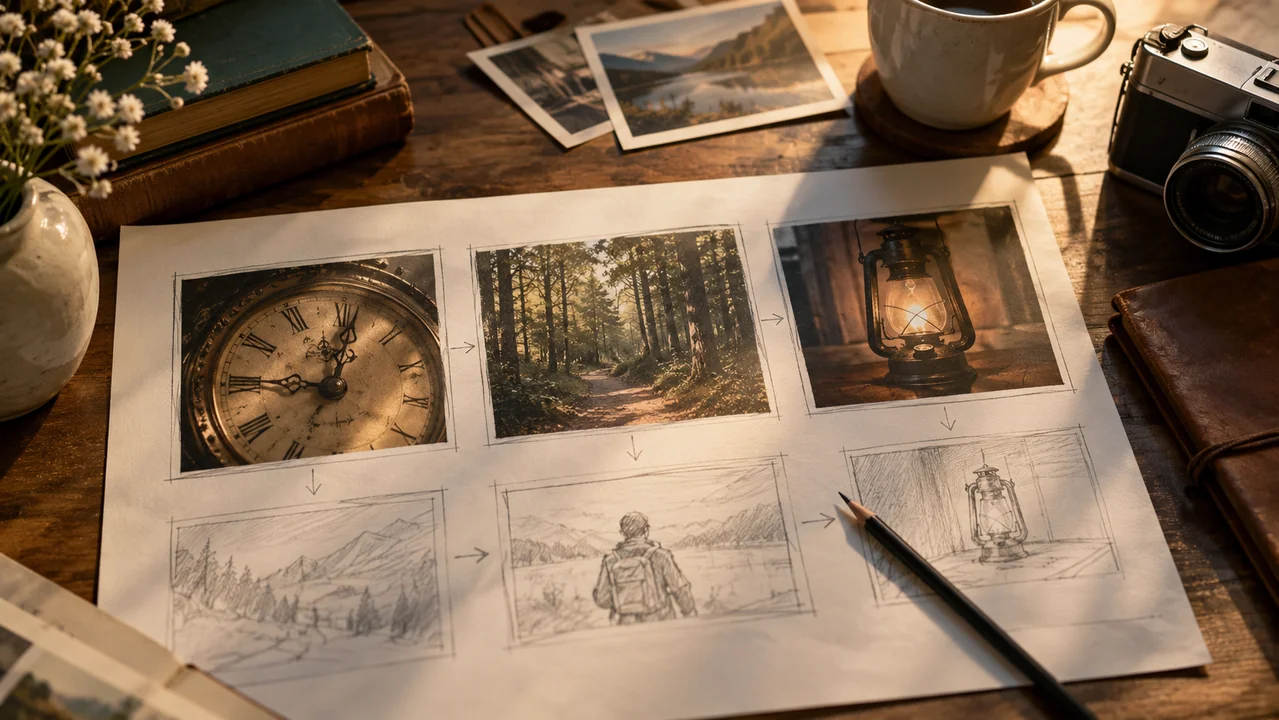
Write a Infovideo LoreMotion AI brief for one character’s immediate purpose, one visible action and a stable ending that can connect to another shot.
- STEP 2
Infovideo Set the atmosphere
Describe Infovideo LoreMotion AI lighting, environment and camera direction, then choose supported duration and framing while checking the quote displayed in the workspace.
- STEP 3
Infovideo Generate a short draft
Prepare your Infovideo LoreMotion AI prompt, add a character image if the chosen mode supports it, then sign in and deliberately press Create.
- STEP 4
Infovideo Review and assemble
Play the complete Infovideo LoreMotion AI take, compare continuity with adjacent shots and download your selected footage for assembly in your regular editor.
Features
Infovideo Plan the Infovideo LoreMotion AI story beat
A Infovideo LoreMotion AI brief needs a small dramatic change. Describe what the character wants, what happens on screen and how the shot ends without introducing an entire script.
Infovideo Give the character an immediate purpose
For Infovideo LoreMotion AI planning, select a purpose that can be shown in movement: approaching a doorway, examining a lantern or waiting beside a bridge. A character’s whole history rarely belongs in a five-second prompt.
Infovideo Create a readable beginning
Begin your Infovideo LoreMotion AI shot with the character and relevant object already visible. If the viewer must first discover a complicated environment, the main action may receive too little time.
Infovideo Leave room for the next shot
A Infovideo LoreMotion AI scene does not need to resolve the whole story. End with a stable pose, a glance or a revealed detail that can connect to another clip.
Infovideo Describe the Infovideo LoreMotion AI character
Infovideo LoreMotion AI story footage becomes easier to follow when the central character has a few clear visual traits. Keep those traits consistent while allowing the action to change.
Infovideo Choose recognizable details
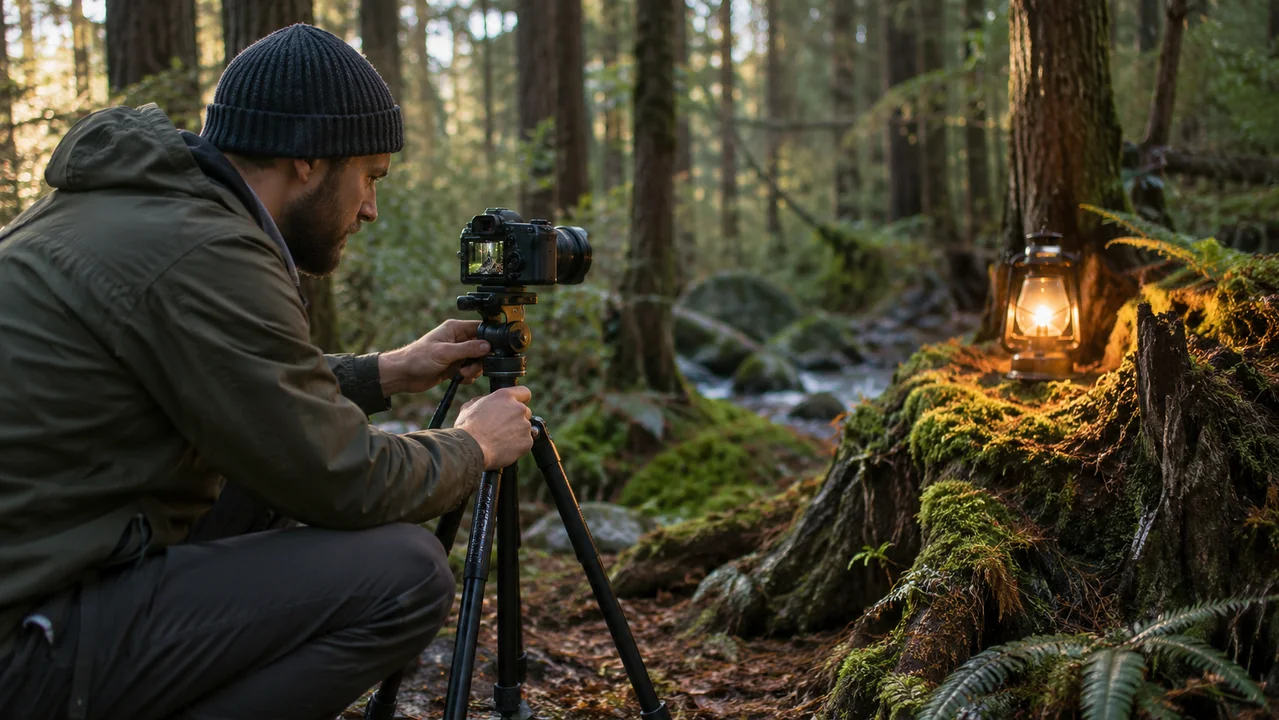
In a Infovideo LoreMotion AI prompt, use a yellow raincoat, a red backpack or a weathered lantern as a recurring visual anchor. Describe the subject’s position and approximate appearance without overwhelming the shot with accessories.
Infovideo Prepare a useful reference
If your Infovideo LoreMotion AI idea depends on a particular character image, choose a compatible image-to-video model and upload a clear reference. Inspect the available controls after switching modes.
Infovideo Record continuity choices
For a Infovideo LoreMotion AI sequence, keep notes about wardrobe, light direction, the recurring object and the character’s location. Reuse those decisions across your prompts instead of changing them accidentally.
Infovideo Stage a simple Infovideo LoreMotion AI moment
Infovideo LoreMotion AI direction should make movement understandable. A glance, a short walk or a hand placing an object can establish a story beat without requiring several simultaneous events.
Infovideo Use one main action
Ask Infovideo LoreMotion AI footage to show a traveler pausing at a bridge or a woman in a raincoat turning toward a warm cabin light. Describe the movement’s pace and ending position. Avoid requiring a long walk, dialogue exchange, camera orbit and scene transition to happen inside one short generated take.
Infovideo Match camera movement to the beat
A Infovideo LoreMotion AI scene can use a locked wide view to explain geography or a gentle push to emphasize a reaction. Choose the camera movement because it supports the beat. When the subject is already moving through the scene, a simpler camera can help you inspect the path and preserve the composition.
Infovideo Make revisions specific
After reviewing a Infovideo LoreMotion AI draft, identify one visible issue. A rushed turn may need a slower movement; an unclear prop may need a closer framing; a drifting horizon may need a locked camera. Preserve the instructions that worked so that the next take answers a focused question rather than starting from scratch.
Infovideo Shape Infovideo LoreMotion AI atmosphere and framing
Infovideo LoreMotion AI scenes gain character from light, color and sound. Keep atmosphere tied to the narrative purpose and select the frame that leaves enough room for the action.
Infovideo Describe environmental cues
Use Infovideo LoreMotion AI instructions to name mist over a bridge, rain on a cabin roof or a lantern’s warm glow against blue evening light. These cues are more concrete than asking for an epic mood. State which parts of the environment should remain still so that small background movement does not distract from the character.
Infovideo Review the starting controls
This Infovideo LoreMotion AI page opens the existing MiniMax H3 Max Turbo text-to-video workflow. Start with the short draft preset, then choose another supported model or mode when the shot requires it. Duration, resolution and aspect ratio affect the available options and quote, so review them after making a meaningful change.
Infovideo Listen for the scene’s rhythm
If your Infovideo LoreMotion AI draft uses generated audio, listen to the whole clip and judge whether the ambience supports the visible action. A quiet forest scene may benefit from soft rain rather than speech. For exact narration or musical transitions, finish the selected footage in your editor with the appropriate audio track.

Infovideo Assemble Infovideo LoreMotion AI story footage
Infovideo LoreMotion AI planning continues after generation. Choose shots that communicate the beat clearly, preserve useful continuity and connect naturally when viewed as a sequence.
Infovideo Review movement across the full clip
Play each Infovideo LoreMotion AI take through its ending. Check the character’s face, wardrobe and prop, then inspect the environment and camera movement. A beautiful opening frame cannot show whether a lantern changes shape or a walking character drifts during the middle of the take. Evaluate the complete moving result.
Infovideo Compare adjacent shots
Place selected Infovideo LoreMotion AI clips next to one another in your editing workflow. Compare screen direction, lighting and the character’s position at the cut. You may need a short detail shot or a quieter ending to connect two otherwise useful takes. The page generates clips rather than automatically maintaining a complete story timeline.
Infovideo Keep the story brief beside the assets
Save your Infovideo LoreMotion AI prompt, settings and continuity notes with the downloaded footage. Label the intended beat, such as arrival, discovery or reaction. This small record helps you decide what is missing from the sequence and makes future revisions easier without relying on memory of the first generation.
Example prompts
Infovideo LoreMotion AI woodland discovery
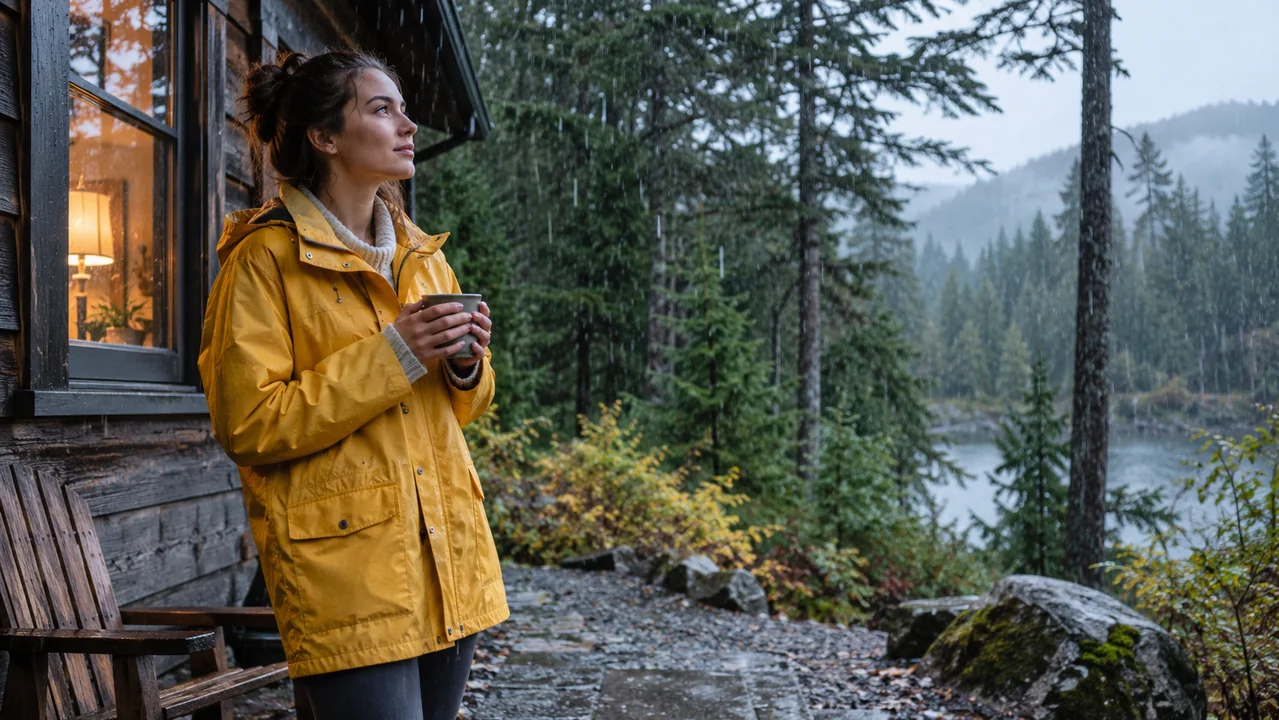
A fictional woman in a yellow raincoat pauses outside a small forest cabin. She slowly turns toward a warm lantern in the window. Gentle rain, muted green woodland, locked medium-wide camera, natural movement, quiet rain ambience, no captions.
Infovideo LoreMotion AI traveler arrival
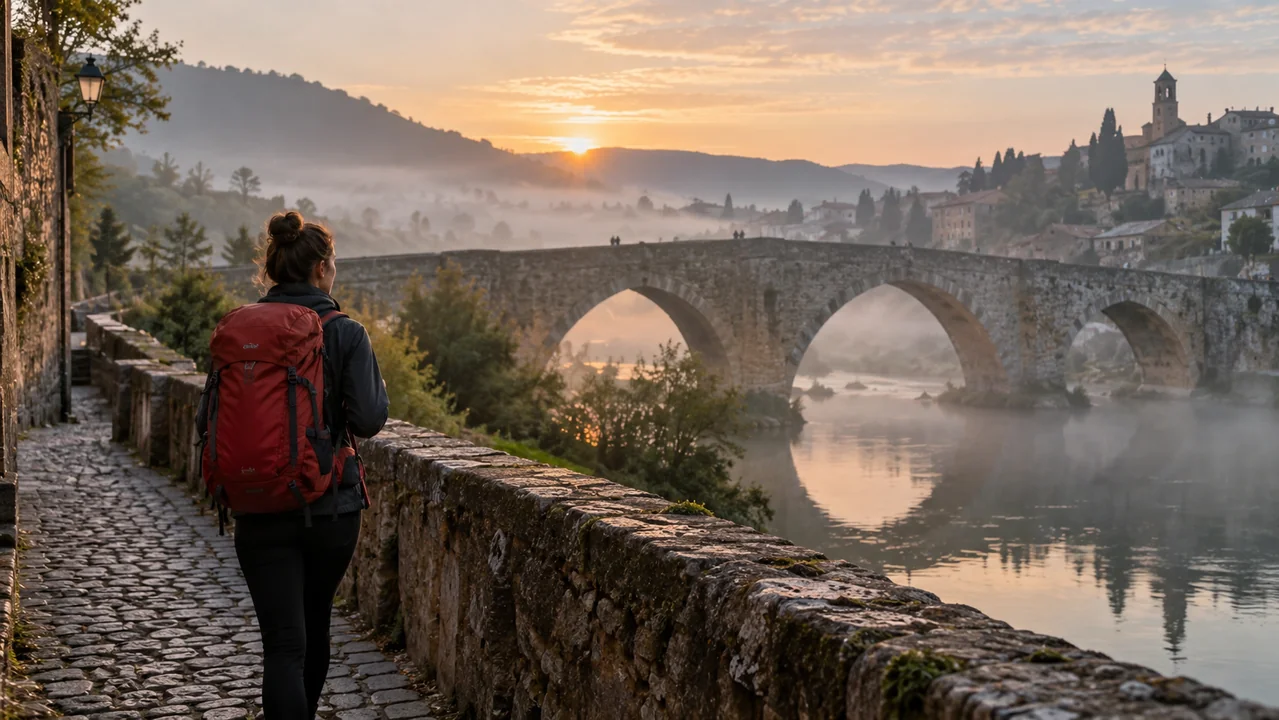
A fictional traveler with a red backpack walks two steps toward an old stone bridge, then pauses to look across it. Misty dawn light, restrained camera push, stable bridge geometry, clear silhouette, soft outdoor ambience, no text.
User reviews
H3Max video creator feedback.
H3Max creator reviews

I made a full character PV for my game with MiniMax H3 in one afternoon. The menu UI stayed readable in every frame and the character never went off-model. That used to cost me a contractor and three weeks.

We tested every AI video generator on the market for stylized work. H3 is the only one that held our anime style across cuts. We now use it for pitch reels and animatics on every project.

I uploaded four product photos and got a listing video with music and a voiceover the same day. My click-through rate on the new listings is up 38%. H3 even got the label text on my packaging right.

I ship five vertical videos a week for three brands. MiniMax H3 gets me from brief to draft in under an hour, with sound already synced. My old workflow needed a videographer and two review rounds.

The editing side is what sold me. A client wanted the background of an interview changed — I typed one sentence into MiniMax H3 and the lighting on the subject matched the new scene automatically.

I previsualized my entire short film in MiniMax H3 before we shot a single frame. Rack focus, match cuts, even the title cards — it understands director language, not just keywords.
Infovideo Pricing and Credit Plans
Cancel anytime
Pay once annually; receive 1/12 of your annual Credits each month. The first allocation arrives after payment, followed by monthly subscription anniversaries.
Lite
50% off0.025 / credit
Billed $ yearly179· Save $179.8
Video Models



Image Models



- Includes MiniMax H3 and all premium models
- Up to 1 batch generation task
- Standard generation speed
- Standard generation success rate
- Standard customer support
- Commercial Use License
Standard
50% off0.017 / credit
Billed $ yearly299· Save $299.8
Video Models
Image Models
- Includes MiniMax H3 and all premium models
- Up to 4 batch generation tasks
- Priority processing speed
- High generation success rate
- Priority customer support
- Commercial Use License
Pro
50% off0.014 / credit
Billed $ yearly599· Save $599.8
Video Models
Image Models
- Includes MiniMax H3 and all premium models
- Up to 10 batch generation tasks
- Fastest generation speed
- High generation success rate
- Dedicated account manager
- Commercial Use License
Max
50% off0.012 / credit
Billed $ yearly1,199· Save $1,199.8
Video Models
Image Models
- Includes MiniMax H3 and all premium models
- Up to 10 batch generation tasks
- Fastest generation speed
- High generation success rate
- Dedicated account manager
- Commercial Use License
Pay safely and securely with























FAQ
Frequently asked questions
What is Infovideo LoreMotion AI used for?
The official platform describes text and image video creation. This independent page focuses on a practical story-scene task: defining a small narrative beat and generating a short clip using H3Max’s displayed models and controls.
Does this Infovideo LoreMotion AI page connect my existing account?
No. H3Max provides the account, generation models and credit system used in this workspace. Your external subscription, saved projects and advertised free access are separate. Review the model and quote here before creating a new clip.
Can Infovideo LoreMotion AI create an entire story here?
Use this workspace to generate individual short shots, then assemble the selected footage in an editor. Long scripts, automatic scene continuity and full timeline management are outside the workflow shown here. Start with the smallest scene that communicates your intended beat.
How do I keep Infovideo LoreMotion AI characters consistent?
Choose a few recognizable appearance details and record continuity notes. Use a clear reference in a supported image-to-video mode when useful. Review every take for changes in identity, clothing and props; repeated instructions can guide the output but do not guarantee perfect continuity.
Does using a Infovideo LoreMotion AI example start generation?
Use This Prompt only prepares a draft and supported settings. You can edit it and inspect the quote first. A new video request begins after your deliberate Create action, and the resulting clip remains subject to review before use.
CTA
Infovideo Begin a Infovideo LoreMotion AI scene
Choose a beat that can be shown in one short shot. Use Infovideo LoreMotion AI planning to define the action and atmosphere, then review a H3Max draft before building the next part of your sequence.
Prepare a story scene